Occasionally we get clients who call or stop in describing these types of notifications. You will see all types like you are infected, or your antivirus is expired for example. These are nothing more than annoying website notifications that you agreed to receive at some point while browsing the internet.
EXAMPLE
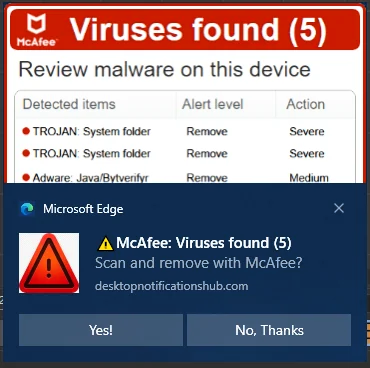
Below are the steps to remove the rogue Microsoft Edge Notifications:
- On your computer, open Microsoft Edge.
- At the top right, click

 Settings.
 - Click Privacy, search, and services on the left-hand side

- Click Site Permissions,
- Click All Permissions,
- Click Notifications on the right-hand side. Scroll down to the Allow section
- Next to each website address, you will see the
 , Click that and then select Remove for each website listed that looks malicious. If you are unsure, then remove them all.
Once they are all removed, close out your Microsoft Edge Browser and re-open it. You should no longer see those annoying pop-ups from Microsoft Edge. You may also want to check your other browsers as well like Google Chrome, Firefox, etc...
Was this article helpful?
That’s Great!
Thank you for your feedback
Sorry! We couldn't be helpful
Thank you for your feedback
Feedback sent
We appreciate your effort and will try to fix the article