Get Company Portal App
You can enroll Windows devices through the Intune Company Portal website or app. Devices running Windows 7 or 8.1 must enroll through the Company Portal website. To access Company Portal:
- Install the app from the Microsoft Store.
- Sign on to the Company Portal website with your work or school credentials.
Enroll devices
Use Intune Company Portal to enroll devices running on Windows 10, version 1607 and later, and Windows 11.
Open the Company Portal app and sign in with your work or school account,
or open it from Start > Search for Company Portal.Sign in With Your Microsoft Work/School Account
When the app opens, click Sign in.
Enter your Microsoft work or school account email (e.g., username@company.com).
Enter your password.
Complete any required Multi-Factor Authentication (MFA) steps if prompted (such as approval via Microsoft Authenticator or text message).
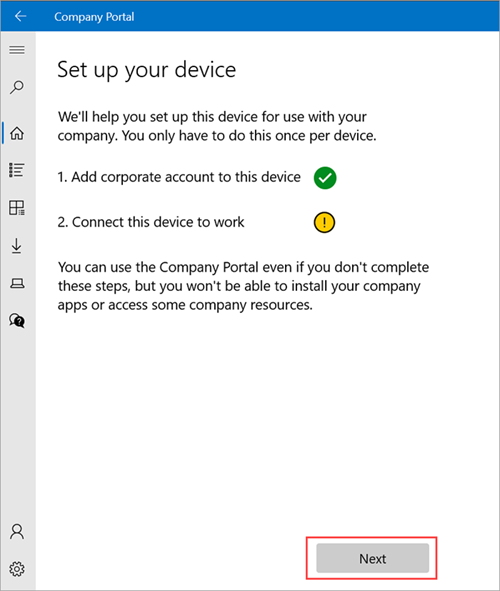
On the Home screen, select Next to set up your device.
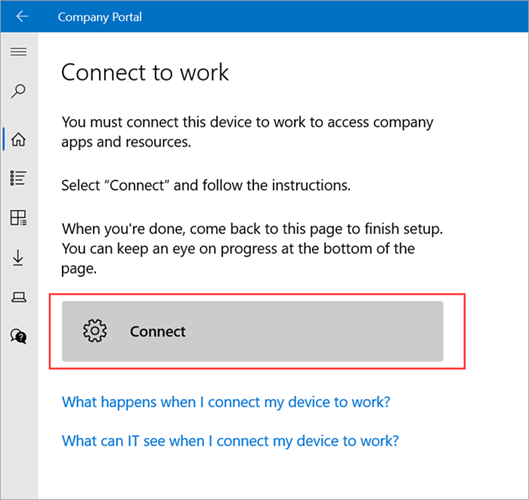
Select Connect.
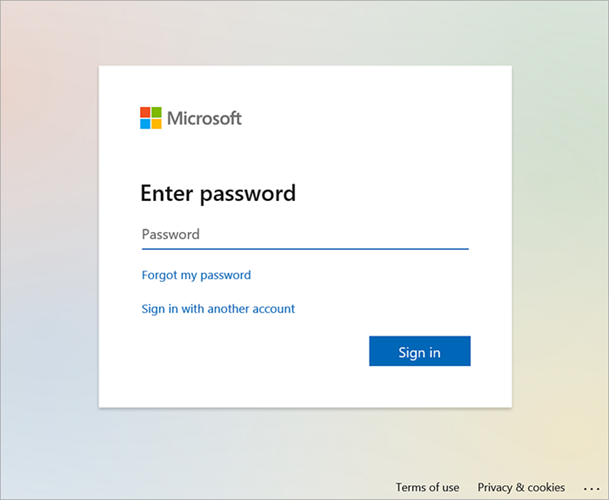
Sign in with your work or school account again. If you're using the Company Portal website, the sign-in prompt may open in a new window.
On the Setting up your device screen, select Go.
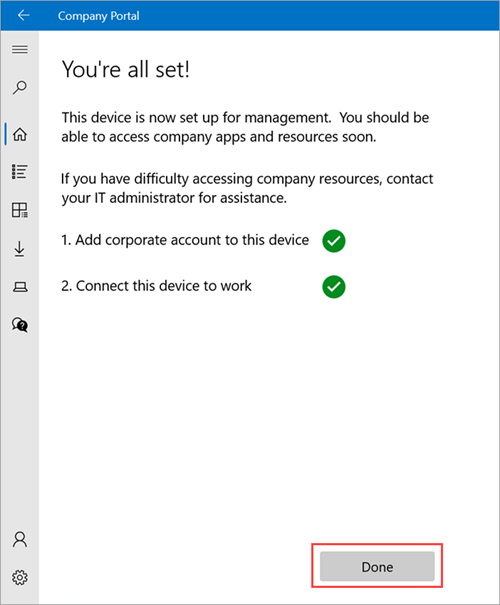
After setup is complete, return to the Company Portal app. Select Next.
Select Done to exit setup.
Was this article helpful?
That’s Great!
Thank you for your feedback
Sorry! We couldn't be helpful
Thank you for your feedback
Feedback sent
We appreciate your effort and will try to fix the article