How the Attack Works
Fake CAPTCHA attacks typically begin when a user clicks a malicious link—often delivered through phishing emails, misleading social media ads, compromised legitimate websites, or manipulated search-engine results. The user is then shown what appears to be a standard CAPTCHA (for example, a familiar “I’m not a robot” checkbox).
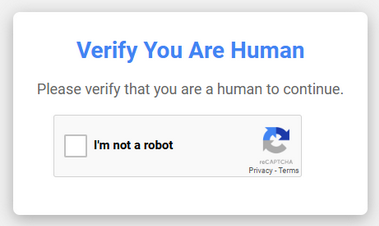
However, once the user interacts with the fake CAPTCHA, the page may instruct them to copy and paste a command into the Windows Run dialog or a PowerShell/Command Prompt window. Although the command may appear harmless, it actually runs hidden PowerShell scripts in the background that download and execute malware.
Awareness of this tactic is critical, as the attack relies heavily on social engineering rather than obvious technical exploits.
How to Spot Fake CAPTCHA
These malicious CAPTCHA look almost identical to the real ones you’ve used many times. The key difference is what happens after you click the checkbox:
- A legitimate CAPTCHA will ask you to complete a task—such as selecting images, typing characters, or simply confirming the checkbox.
- A fake CAPTCHA will instead tell you to copy and paste a command into the Run dialog or terminal window. This is the unmistakable red flag.
Legitimate CAPTCHA systems never ask users to run commands or open PowerShell. The attackers often show a “preview” of a harmless-looking command to build trust, but the real malicious command is obfuscated or extends beyond the visible text field, hiding its true purpose.
If the user pastes and executes the command, it can give attackers remote access, install malware, or steal sensitive data—usually with no obvious signs that anything is wrong. That’s when you know you’re dealing with a fake, as shown below.
.
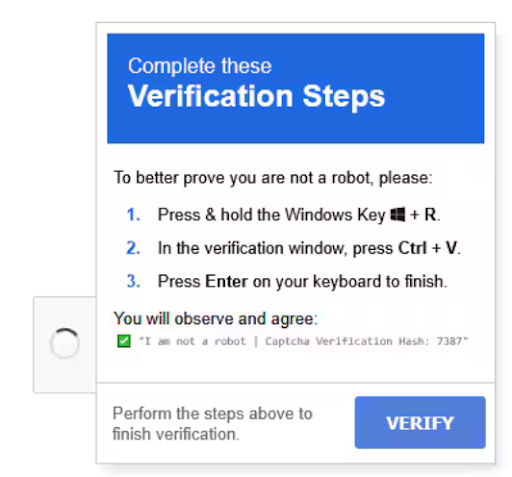
Legitimate CAPTCHA will never ask you to copy and paste commands, and if you do, you’ll be executing a harmful command that could compromise your machine’s security. The fake CAPTCHA wants to appear legitimate by showing you a preview of the command that you are being instructed to copy and paste, but this is a ruse. The real command being executed is obfuscated and is actually malicious, and may be hidden from view outside of the text field (as seen in the Run dialog box, where the command appears to be a harmless verification ID).
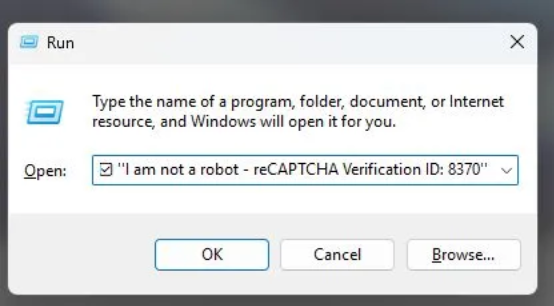
As seen above, if the user pastes the command into the Run dialog and clicks OK, the malicious command is executed, potentially allowing attackers to access and control the user’s system, install malware, or steal sensitive information, often without the user’s knowledge or visible indication of compromise.
Socially engineered
The attack leverages our inherent trust in CAPTCHA challenges, exploiting the widespread assumption that CAPTCHAs are a security measure designed to protect us. This familiarity can lead people to let their guard down, blindly following instructions without critically evaluating the situation. Attackers also use tricks like adding harmless-looking text at the start of the command to hide the real code that does the damage.
Key Takeaways
Here are some ways to protect yourself:
Be aware of fake CAPTCHA scams: They rely on familiar-looking interfaces to trick users.
Never copy and paste commands from a website: No legitimate verification process will ever ask you to run code on your computer.
Be cautious of prompts to open the Run dialog or PowerShell: These actions are not part of normal browsing and are strong indicators of a security threat.
What To Do If You’re Affected
If you think you may have pasted and executed a malicious command:
Disconnect from the internet immediately to prevent further attacker communication.
Stop using the device until it can be checked by your IT Department or It Service Provider.
Report the incident to your departmental IT team or the IT Helpdesk and provide as much detail as possible about what occurred.
Was this article helpful?
That’s Great!
Thank you for your feedback
Sorry! We couldn't be helpful
Thank you for your feedback
Feedback sent
We appreciate your effort and will try to fix the article