Maintain only a local account on your Windows 11 PC.
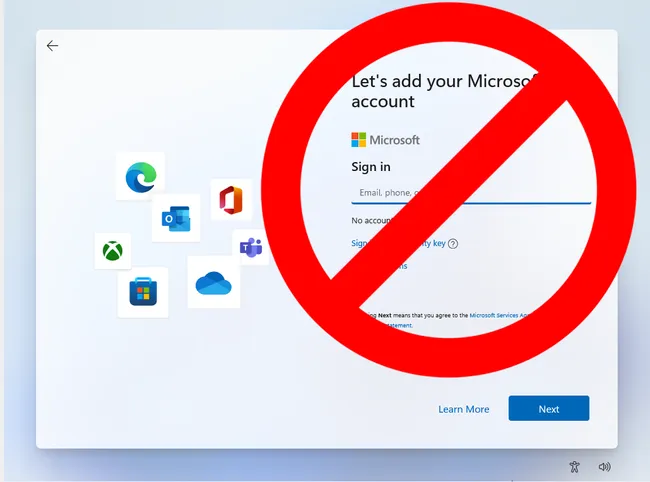
How to Install Windows 11 Without a Microsoft Account
There's a simple trick for setting up a local account that involves issuing a command to keep Windows from requiring the Internet to install/set up and then cutting off the Internet at just the right time in the setup process. This works the same way whether you are doing a clean install of Windows 11 or following the OOBE process on a store-bought computer.
1. Follow the Windows 11 install process until you get to the "choose a country" screen.
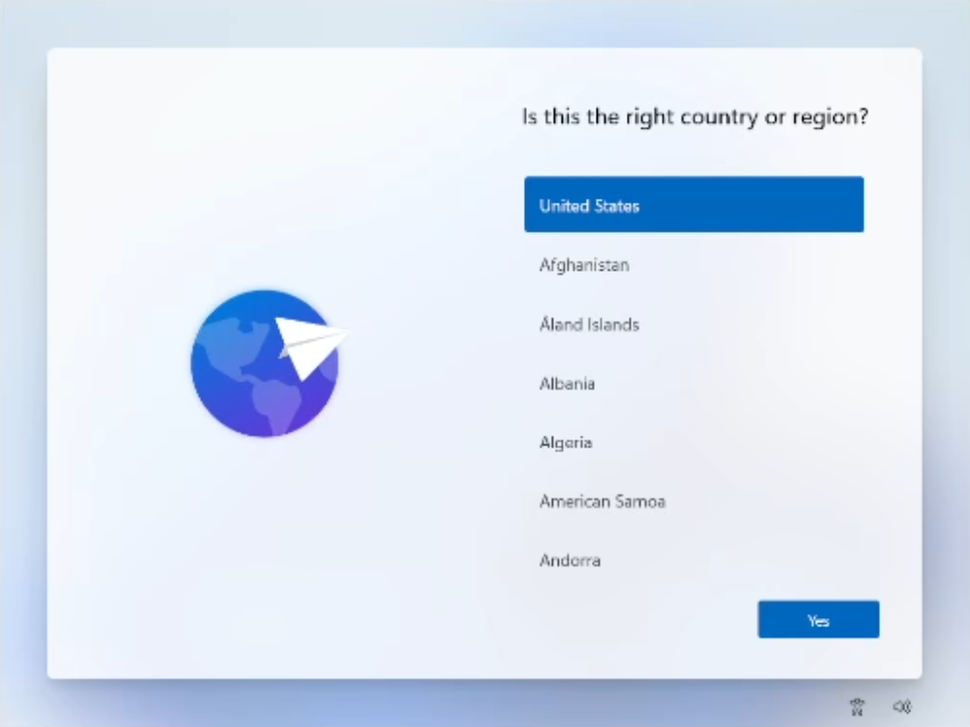
Now's the time to cut off the Internet. However, before you do, you need to issue a command that prevents Windows 11 from forcing you to have an Internet connection.
2. Hit Shift + F10. A command prompt appears.
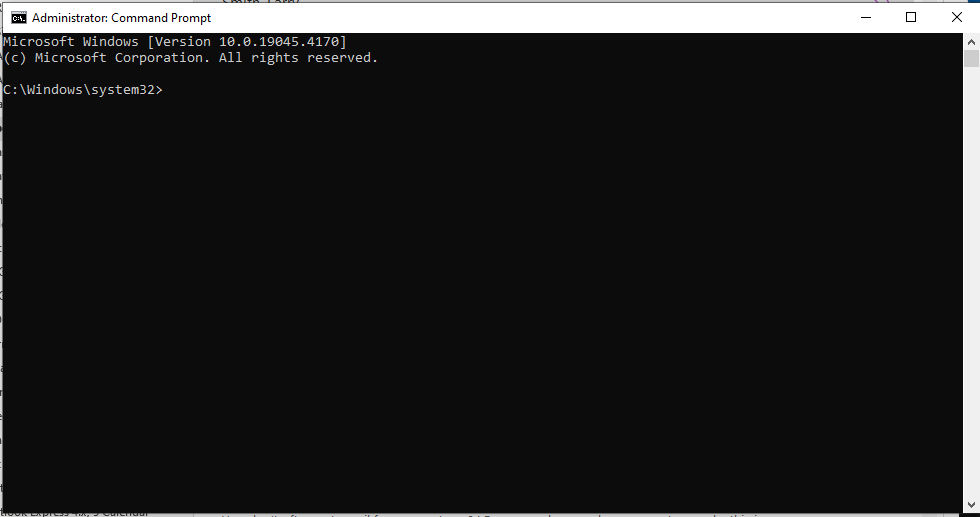
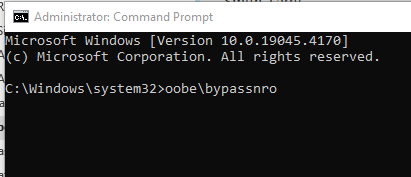
3. Type OOBE\BYPASSNRO to disable the Internet connection requirement.
The computer will reboot and return you to this screen.
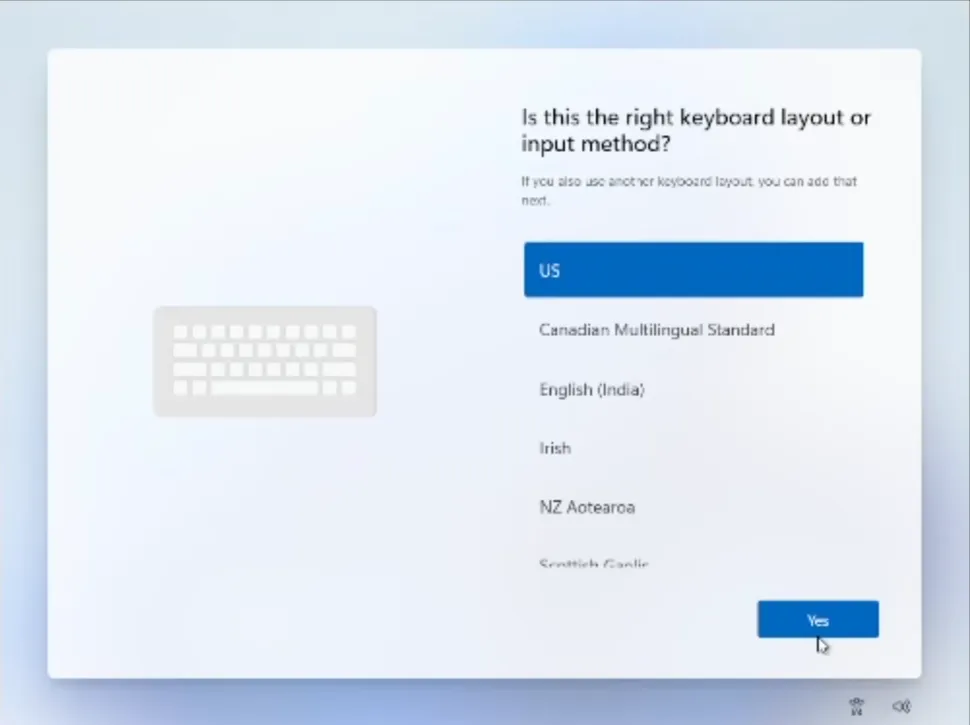
4. Continue with the installation, choosing the region. keyboard and second keyboard option.
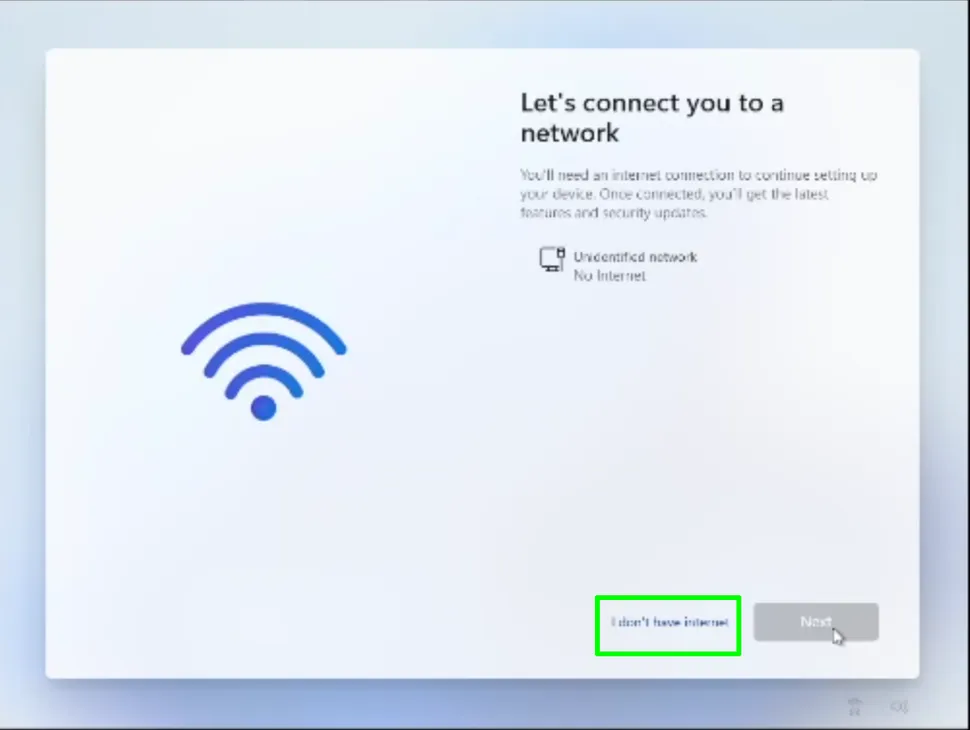
A screen saying "Let's connect you to a network" appears, warning you that you need the Internet.
5. Click "I don't have Internet" to continue.
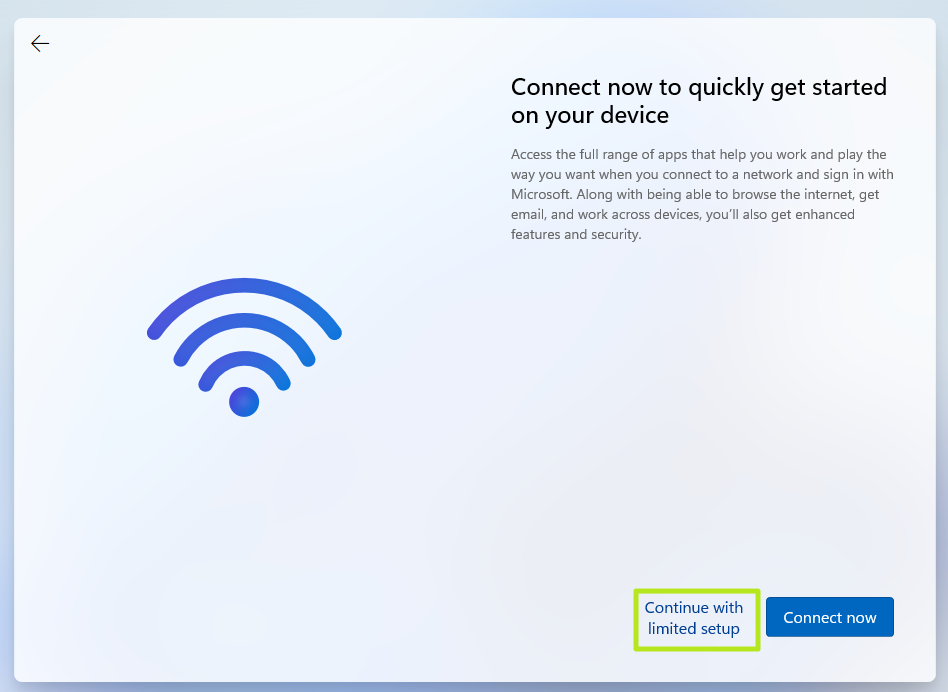
6. Click Continue with limited setup.
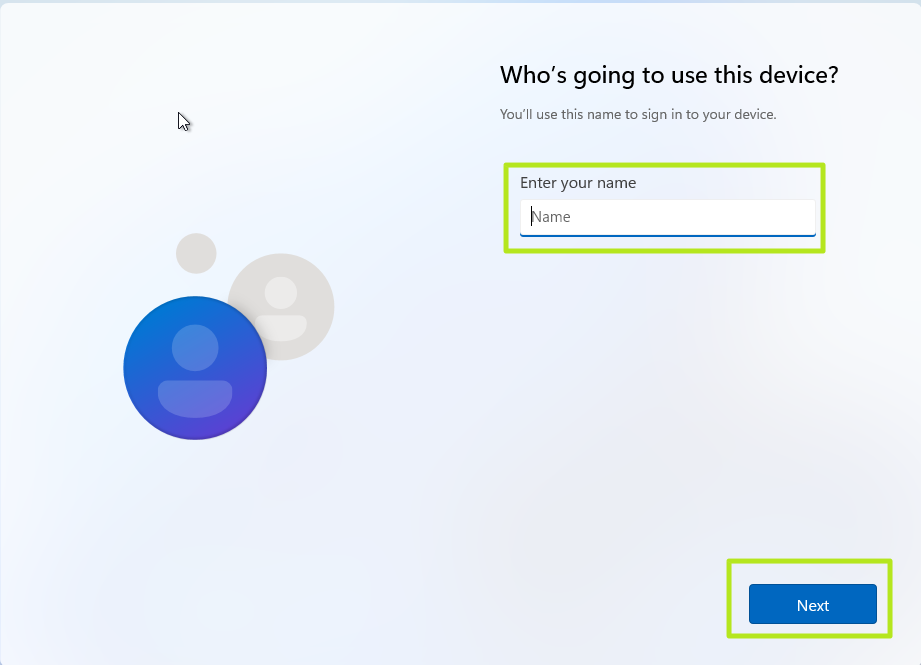
A new login screen appears asking "Who's going to use this device?"
7. Enter a username you want to use for your local account and click Next.
8. On the Create a Super Memorable Password screen we recommend leaving this Blank. You can add a password after the setup is complete and all the appropriate drivers and Windows updates are installed. We do recommend adding a password to your account.
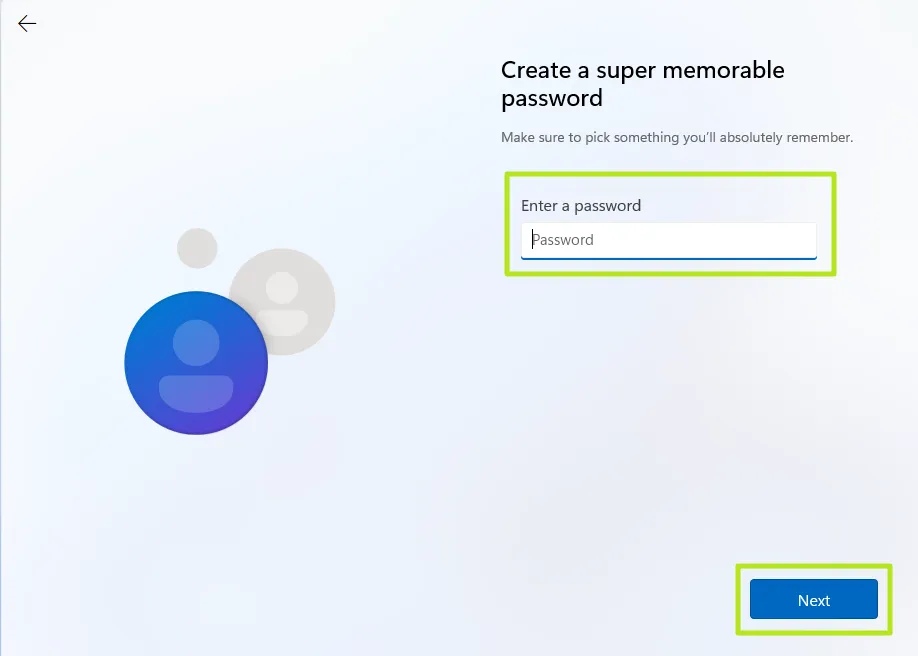
9. Complete the rest of the installation process as you normally would.
Was this article helpful?
That’s Great!
Thank you for your feedback
Sorry! We couldn't be helpful
Thank you for your feedback
Feedback sent
We appreciate your effort and will try to fix the article